
Last updated:
Need to move a Facebook Page or Instagram Account between Meta Business Portfolios? This step-by-step guide shows you how to transfer assets in Meta Business Suite and Meta Business Manager, including connected Instagram accounts, access permissions, and confirmation steps.
Important prerequisites
Before starting, make sure you have:
- Full Access to both portfolios – if the Page is already claimed by another Business Portfolio, you must be added as a Full Access user to both the source and destination portfolios.
- Login credentials (including MFA) for the Instagram account – required if the Page is linked to Instagram.
- Understand the limitations – ad accounts, pixels, and datasets cannot be transferred.
Definitions:
- Source Page = the Facebook Page you want to move
- Source Instagram Account = the Instagram Account you want to move
- Destination = the Business Portfolio where the assets will be transferred to
Steps in Meta Business Suite
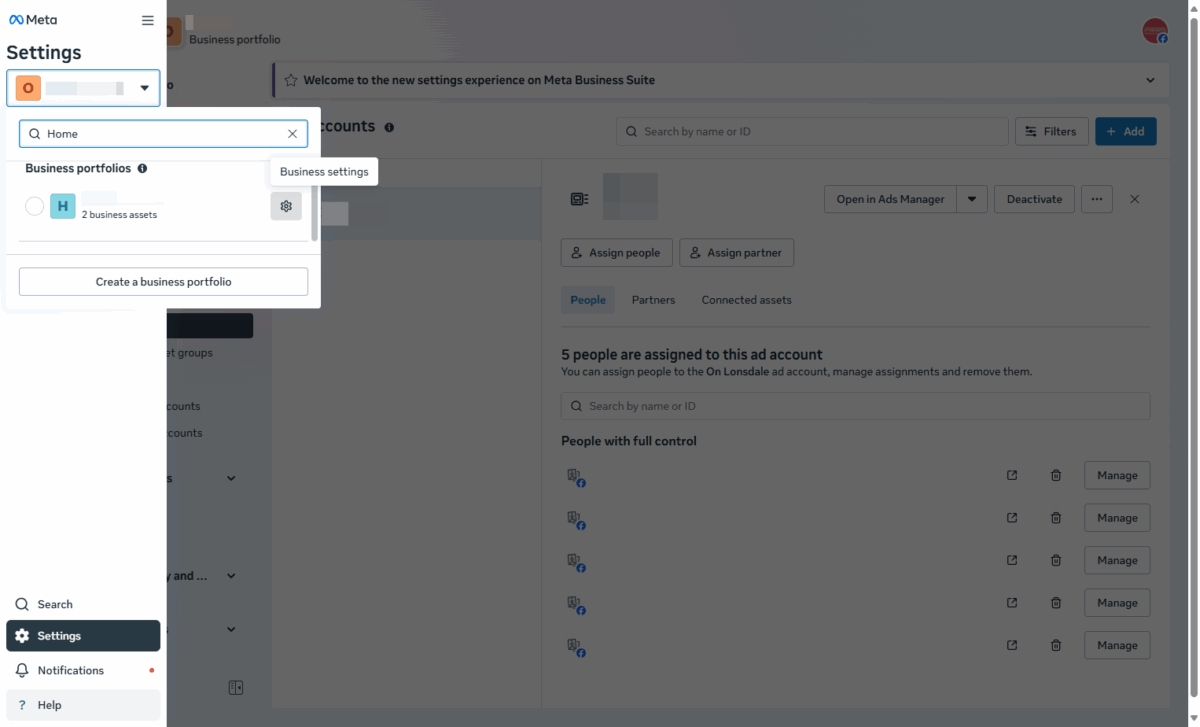
1. Go to the Business Settings of the destination portfolio
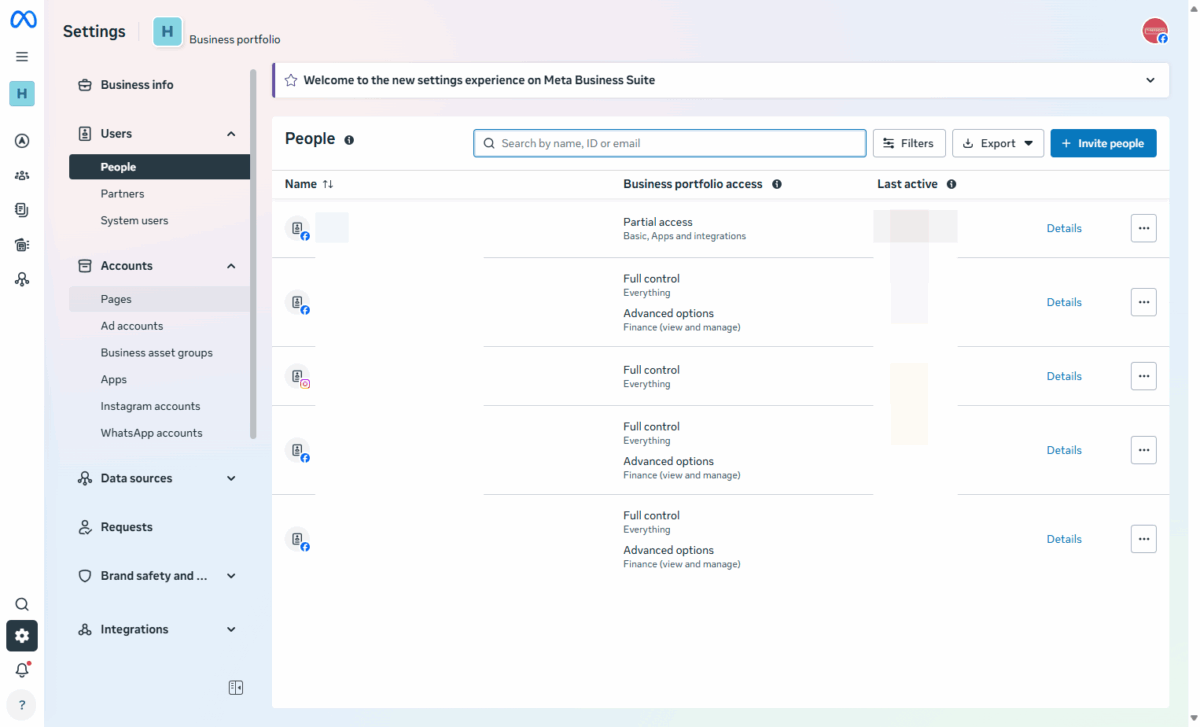
2. Click on Pages
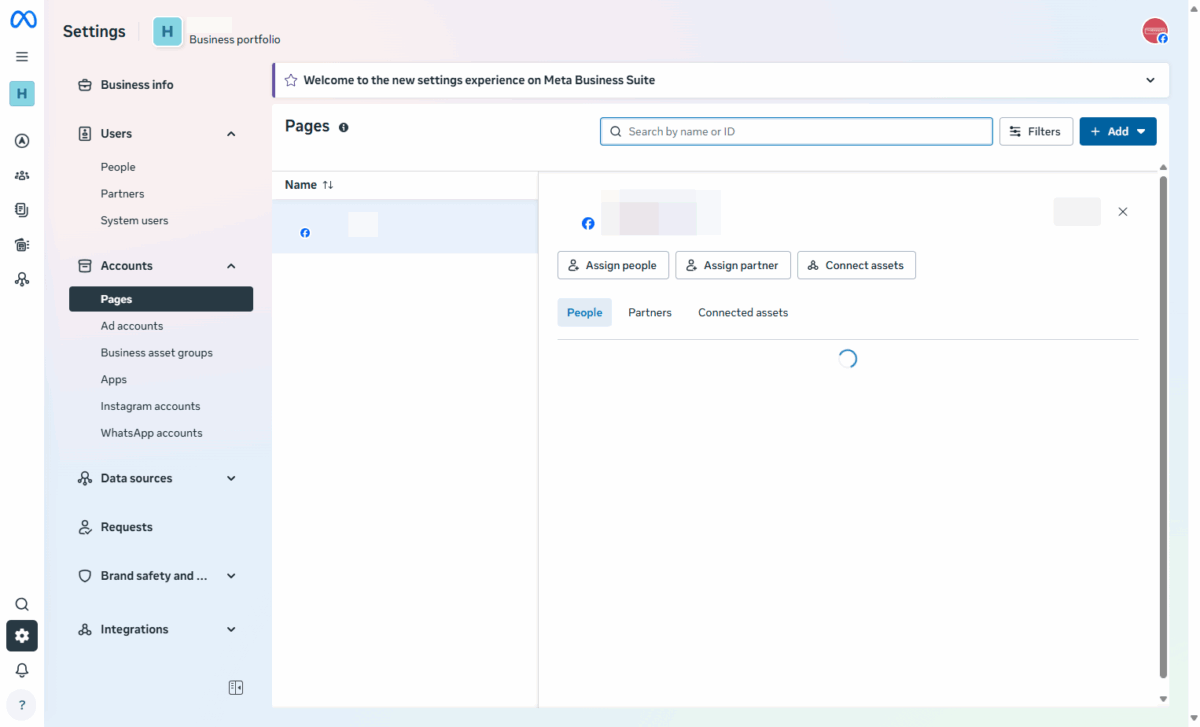
3. Click on Add
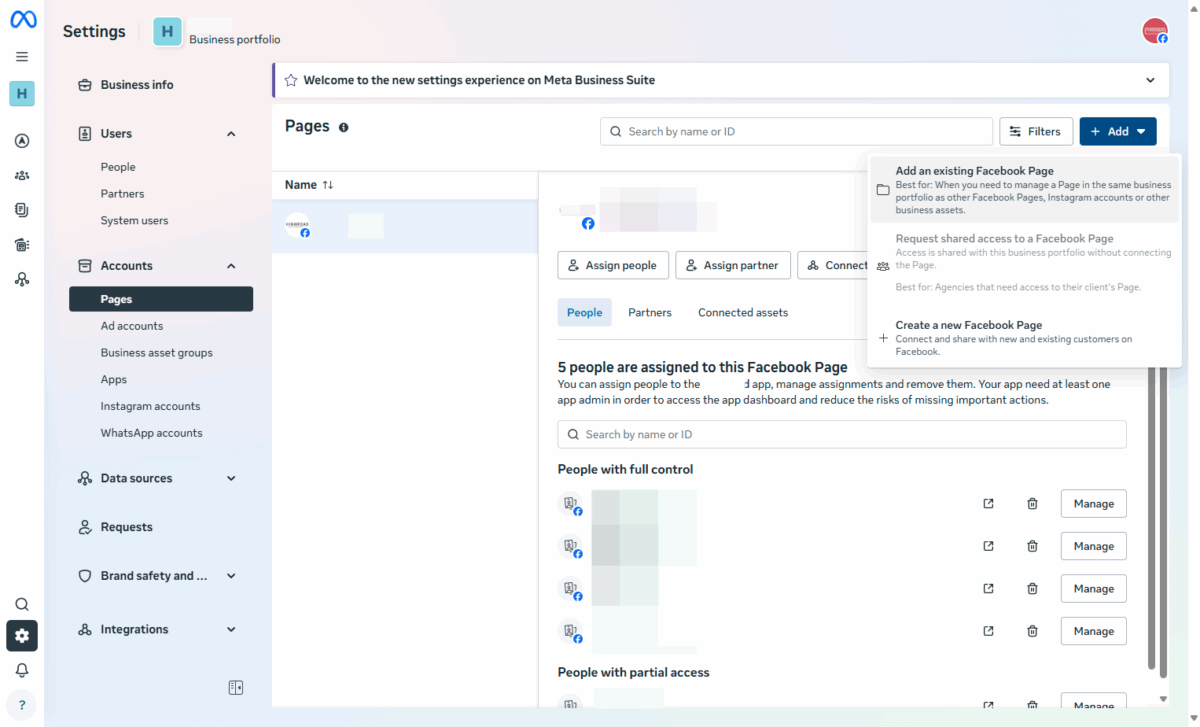
4. Select Add an existing Facebook Page…
5. Enter the name of the Source Page and select it from the list
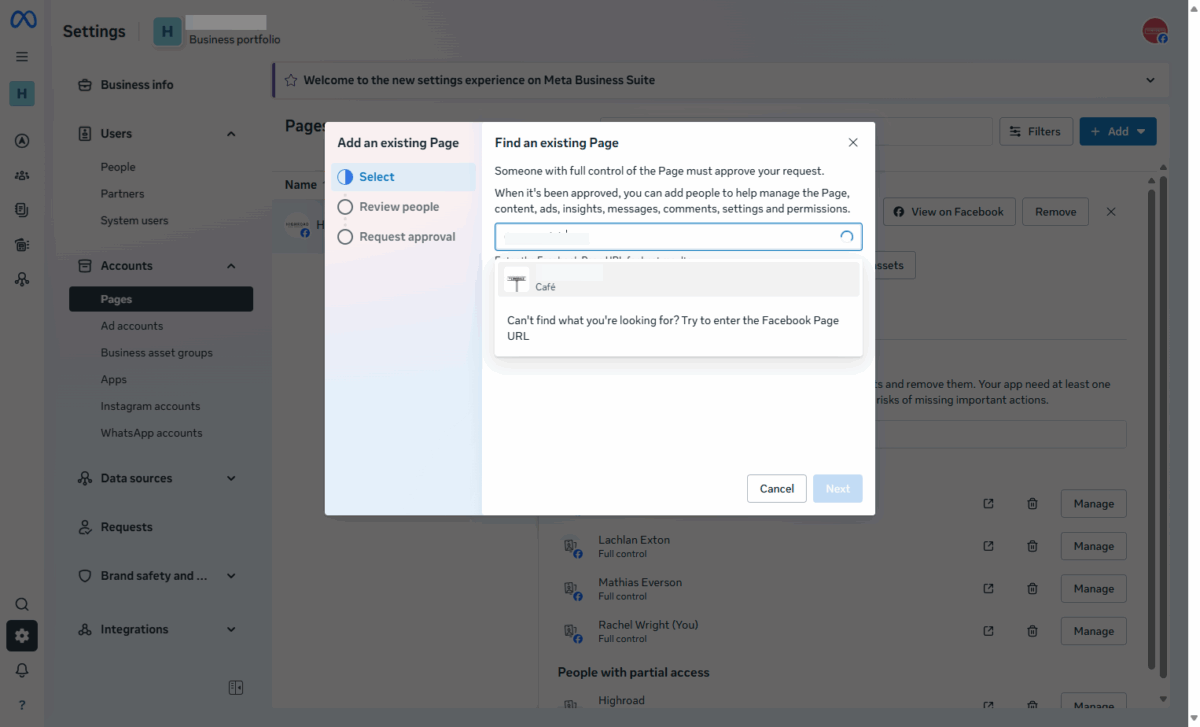
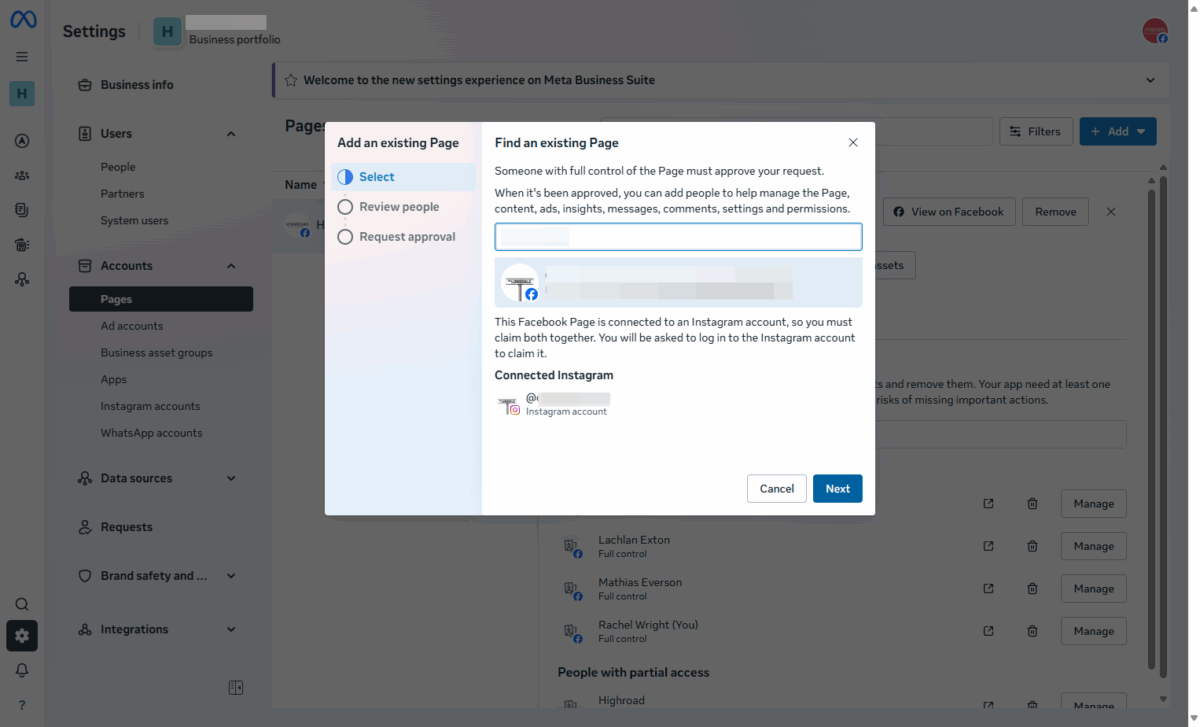
6. Click on Next
If there is a connected Instagram account, it will be shown here.
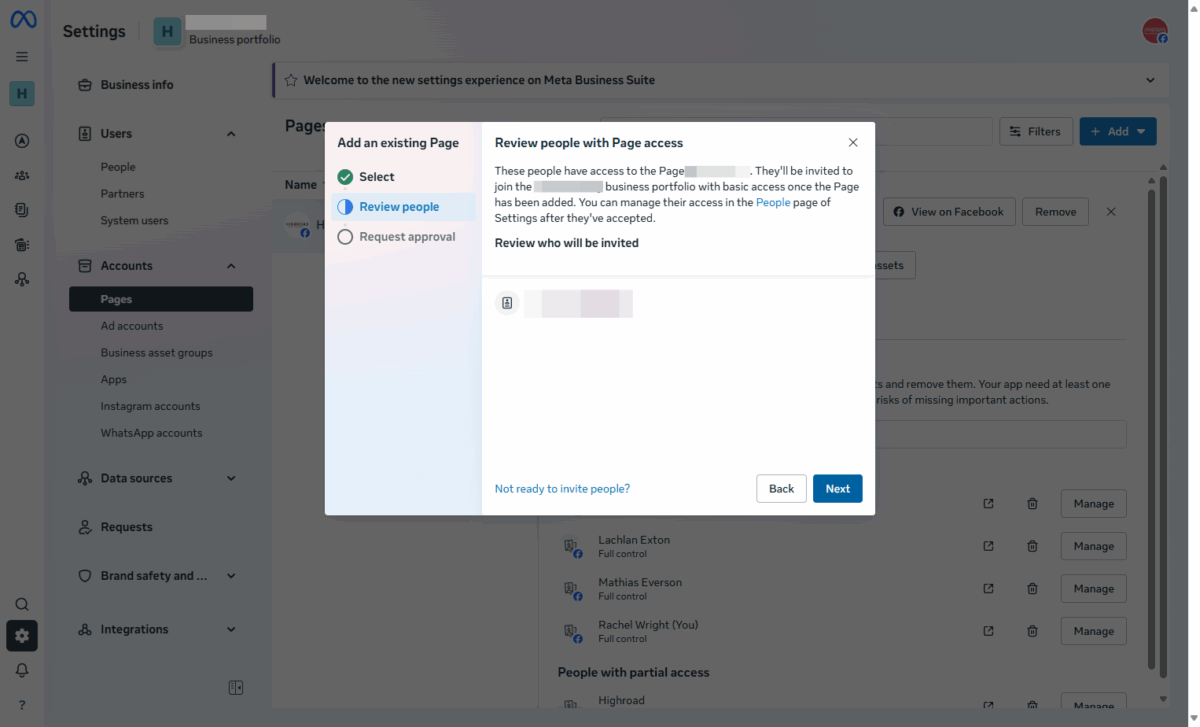
7. Review people with access, then click on Next
Remove anyone you do not want transferred into the destination portfolio.
8. Confirm the transfer items, check the terms, then click Add Page and Instagram
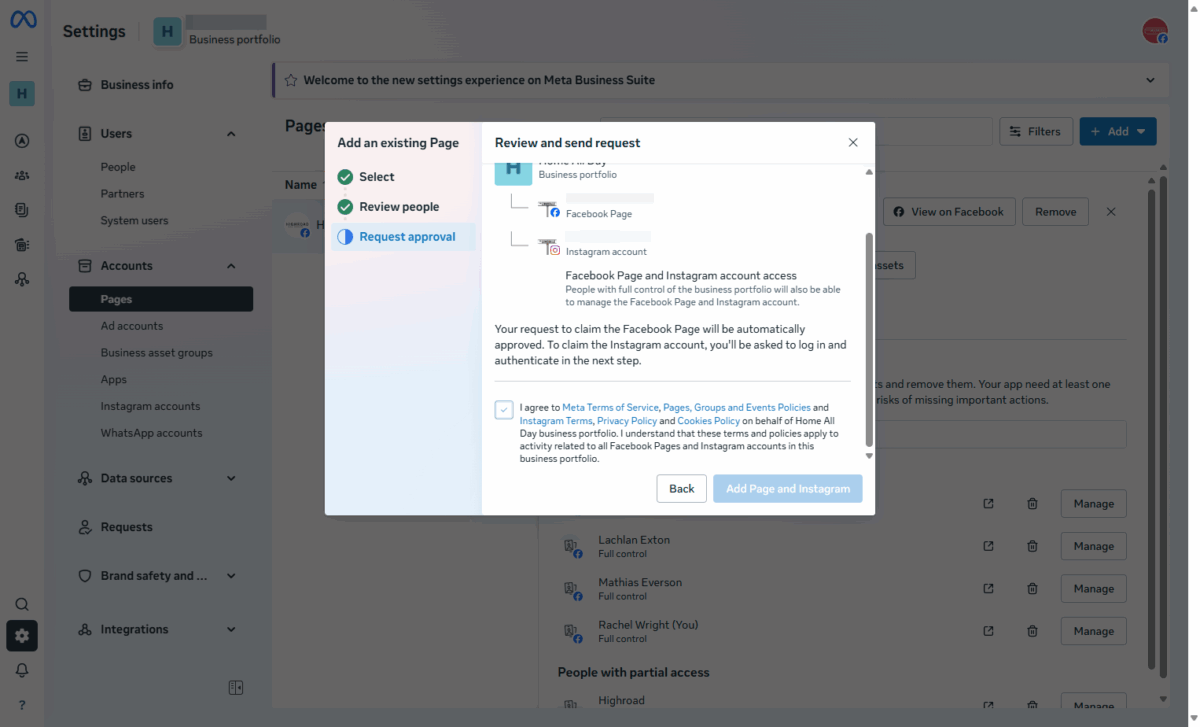
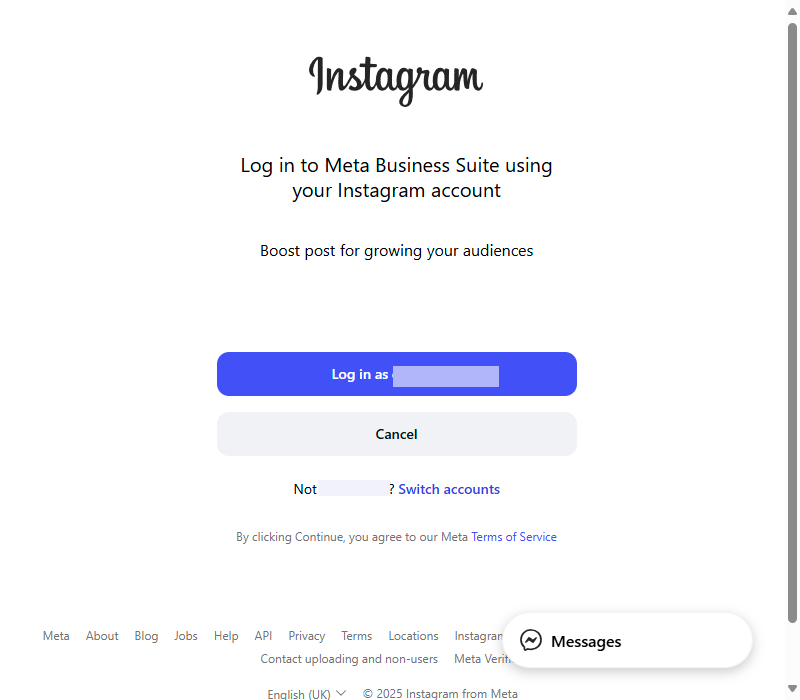
9. Log in to the Source Instagram Account to confirm the transfer
MFA (multi-factor authentication) may be required.
Steps in Facebook
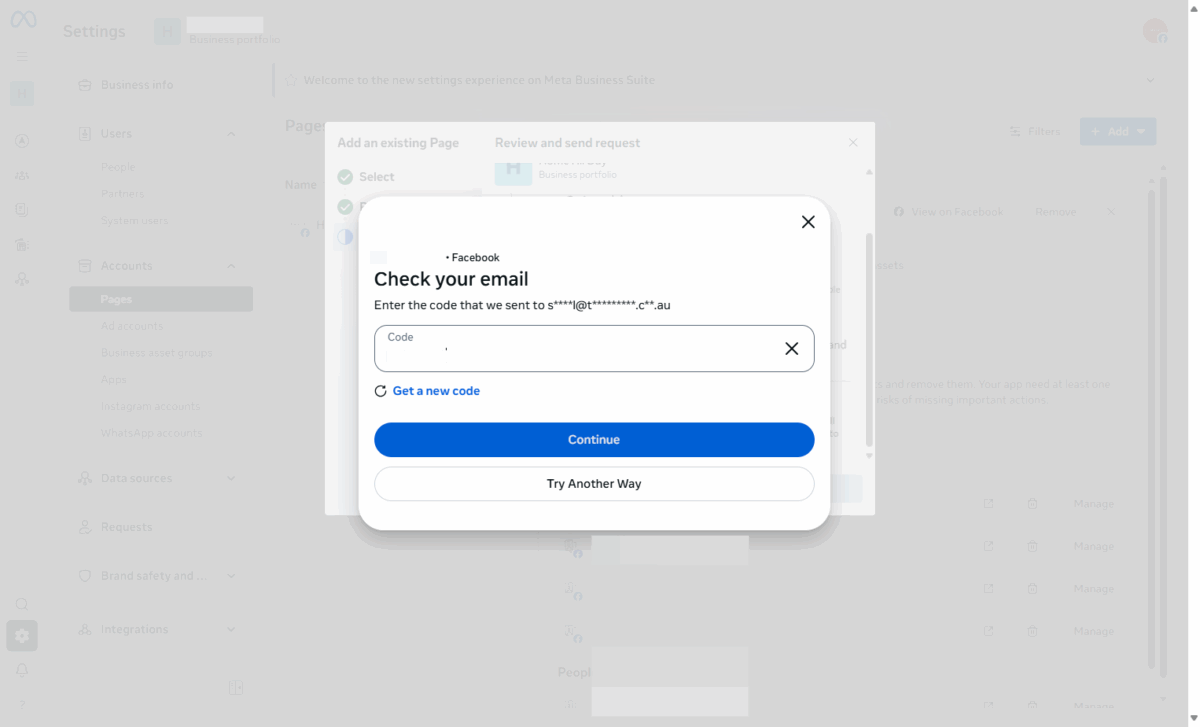
10. Confirm the transfer with a code or passkey if prompted
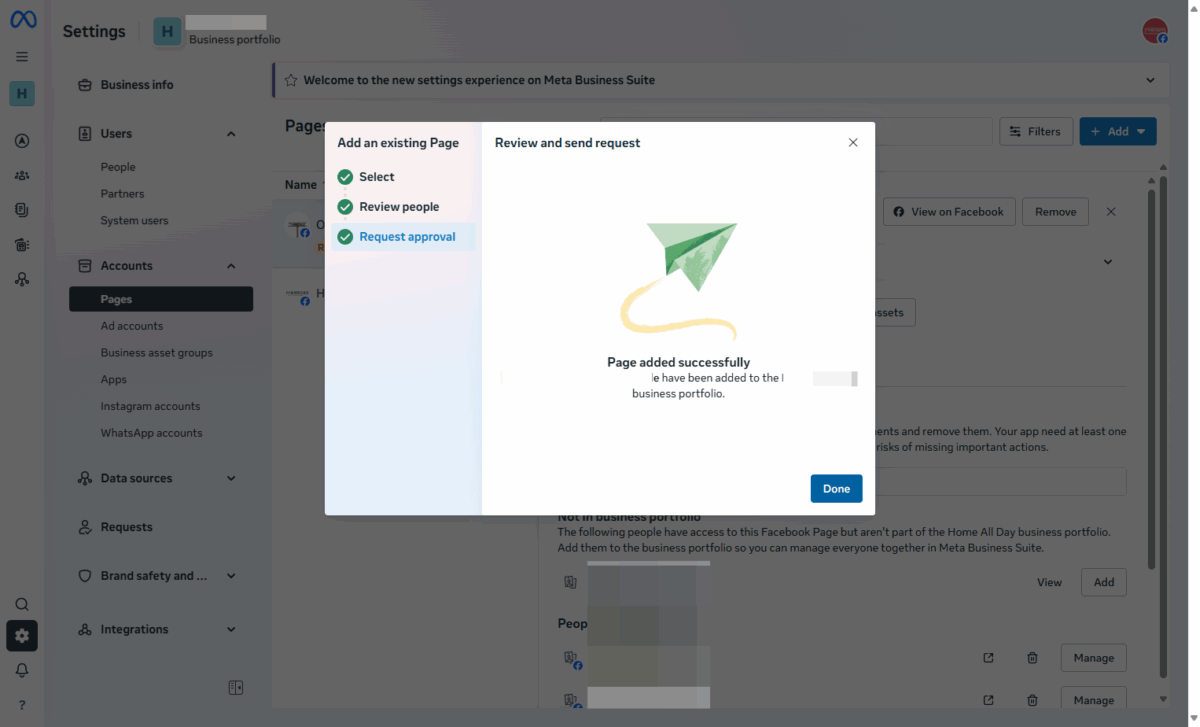
11. Click on Done
Final notes
Once complete, your Facebook Page and Instagram Account should now appear under the new Business Portfolio. Double-check permissions and settings to ensure everything is working as expected.